Prerequisites
- Home Assistant Voice Preview Edition
- USB-C cable and USB power supply (these are not included in the box)
- Home Assistant server.
- The Home Assistant Voice Preview Edition is not a standalone device. For it to work, it needs to connect to Home Assistant, which is installed on a device to act as a server, for example on a Home Assistant Green.
- If you do not have Home Assistant installed yet, refer to the installation documentation for instructions.
- If you already have Home Assistant, make sure to update to the most recent version.
- In the Home Assistant UI, you are logged in with a user that has Administrator rights on Home Assistant.
- To check if a user has Administrator rights, you need to be logged in with Administrator rights.
- Go to Settings > People and check the settings for that user.
- The password to your 2.4 GHz Wi-Fi network
- Some routers default to the 5 Ghz frequency. In that case, you need to specifically select the 2.4 Ghz.
Note: This guide was tested using Home Assistant Operating System on Home Assistant Yellow and on Home Assistant Green.
Onboarding via phone
Using your iPhone/Android is the easiest way to connect your Home Assistant Voice Preview Edition to your Wi-Fi network.
- Have the Home Assistant Companion app installed on your iPhone or Android and configured to connect to your Home Assistant server.
- The Home Assistant Companion app is a client software. This means it allows you to access and use your Home Assistant server from a mobile device.
- Note that in the app store, it is called Home Assistant. In the app itself, it is called Companion app.
- Make sure the version of the Home Assistant Companion app is up to date.
- You are logged in to your Home Assistant Companion app with a user that has Administrator rights on Home Assistant.
- On your phone, make sure Bluetooth is enabled.
- Make sure the Home Assistant Companion app has Bluetooth permission:
- On iPhone, go to Settings > Privacy & Security and enable Bluetooth for Home Assistant.
- On Android: make sure you’ve enabled precise location service permissions for Home Assistant. It is used for onboarding only. You can disable it again afterward.
- Go to Settings > Apps > Home Assistant > Permissions and enable Location, Allow all the time and Use precise location.
Onboarding via Bluetooth
If you don't want to use a phone and your Home Assistant has Bluetooth: either onboard Bluetooth, or an ESPHome device set up as a Bluetooth proxy and connected to Home Assistant.
To connect the device to your Wi-Fi and to Home Assistant
Step 1
Connecting the device to the power source

- Use the USB-C cable to connect the device to a power source.
- Info: You should see a warm white twinkle animation.
Step 2
Opening the Home Assistant UI
- If you're using your phone, open the Home Assistant Companion App.
- If your Home Assistant has Bluetooth, open Home Assistant in a browser.
Step 3
Adding the integration
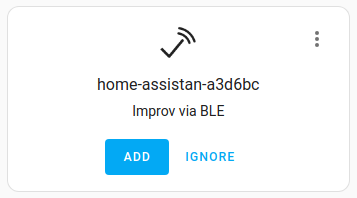
- Go to Settings > Devices & services and under Discovered, you should see the device as "home-assistant-xx Improv via BLE".
- Select Add, then Submit.
Step 4
Entering your Wi-Fi credentials
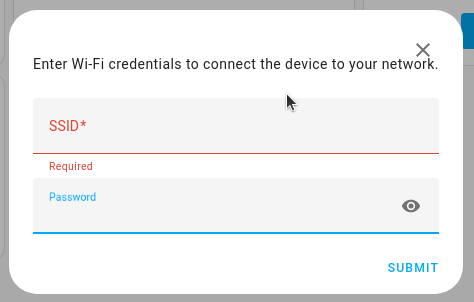
- In the SSID field, enter the name of your Wi-Fi.
- If you have different Wi-Fi names for the 2.4 GHz and the 5 GHz Wi-Fi networks, make sure you use the credentials for the 2.4 GHz network.
Step 5
Authorizing your connection
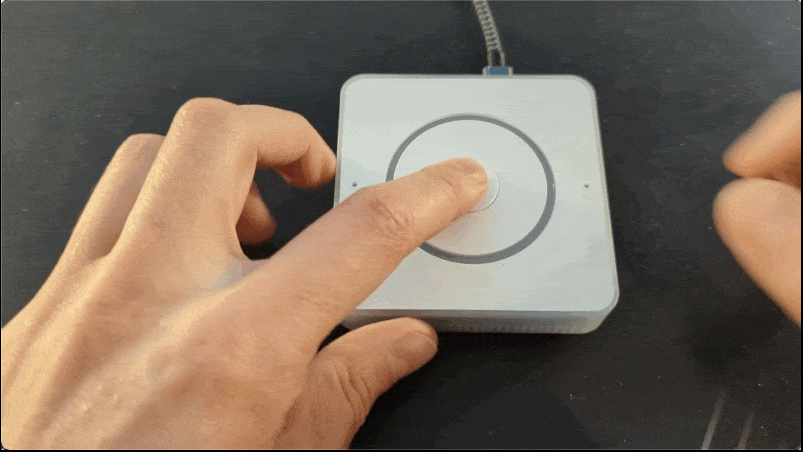
- When prompted, press the center button on Home Assistant Voice.
- Info: This is to confirm that you are the one trying to connect the device.
- Troubleshooting: If you now see a message “Failed to connect”, continue with the Troubleshooting steps.
- Success! Your device is now connected to your Wi-Fi. Close.
Step 6
Completing device discovery
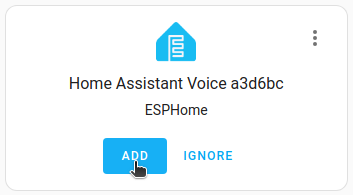
- Under Discovered, add the Home Assistant Voice XXX.
- Discovered ESPHome node: select Submit.
Step 7
Following the wizard steps
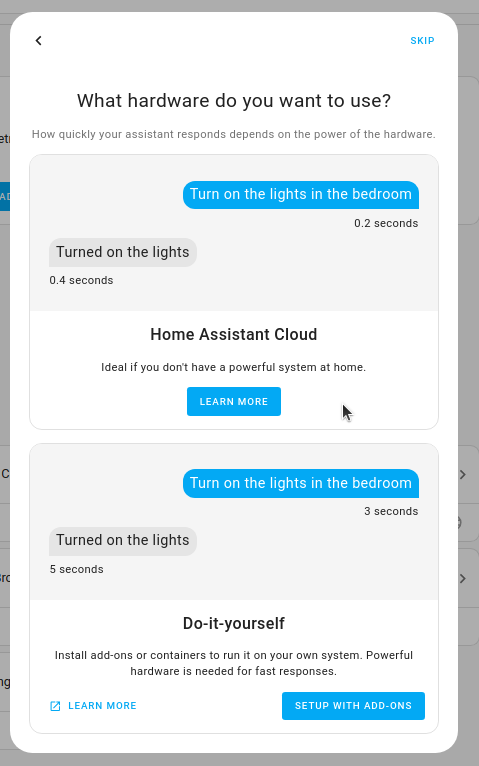
- The wizard starts checking for updates.
- Follow the instructions on screen.
- If you are connected to Home Assistant Cloud, the Cloud Assistant is used. Your job is done here.
- If you are not connected to Home Assistant Cloud, you will see a step What Hardware do you want to use?:
- Option 1: If you choose Home Assistant Cloud:
- If you already have Home Assistant Cloud account, select Log in and enter your login credentials. If not, enter email and password, select Next and follow the wizard.
- If you do not have an account yet, select Learn more, then Try 1 month for free.
- For more information, refer to the guide on Getting started with Home Assistant Cloud.
- Option 2: If you choose Do it yourself:
- Info: If you have lower-power hardware, this option is not recommended. Weaker Home Assistant hardware can lead to slow speech processing.
- Select Setup with add-ons.
- Result: The required add-ons are being installed: Whisper, Piper.
- Option 1: If you choose Home Assistant Cloud:
- On the integrations page, under Discovered, Add the Whisper and Piper integrations.
Step 8
Talking to Home Assistant
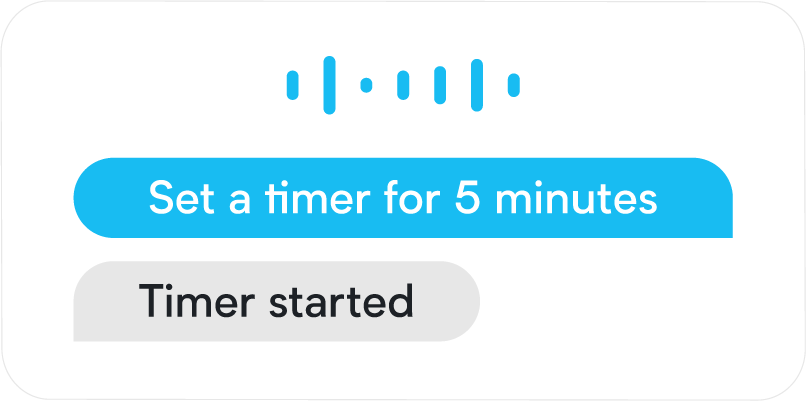
- Start controlling Home Assistant by saying a supported voice command:
- For example, “What's the time” “Turn on the light in the living room”, “Set the timer to 5 minutes”, “Is the front door locked”.
- Make sure you’re using the area name exactly as you defined it in Home Assistant.
- Troubleshooting: Is the device you want to control via Assist (for example a specific light) not responding to your voice commands? Make sure the device is exposed to Assist.
- For example, “What's the time” “Turn on the light in the living room”, “Set the timer to 5 minutes”, “Is the front door locked”.